Wiki







Add New Inventory Item
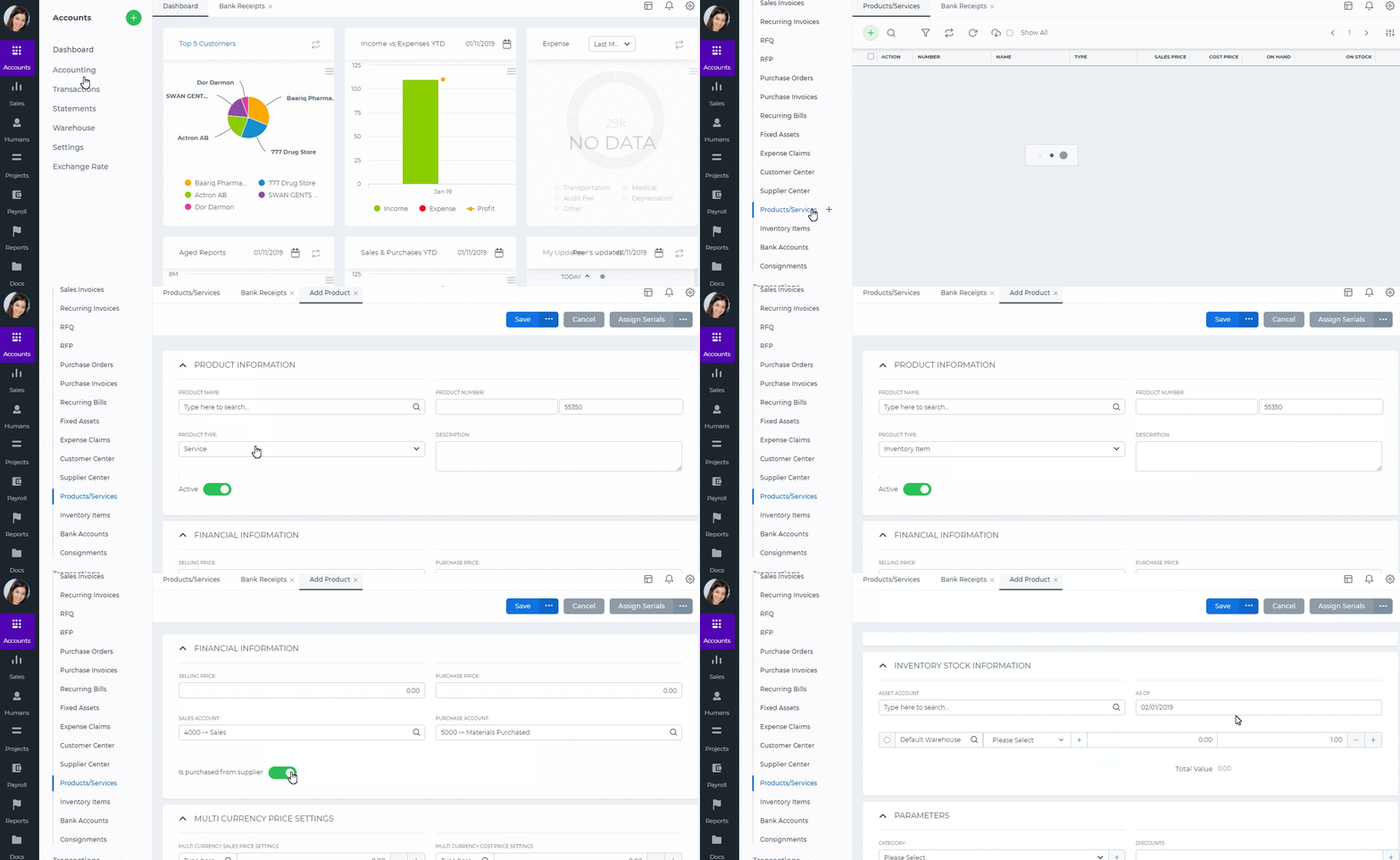
To add a new Inventory Item, go to Product/Services page and click Add. Here are the description of the fields:
Product Type – Select Inventory Item type following fields will be available:
Product Name – Write the name of Inventory Item.
Product Number – Product number will be set automatically. You can set your own numbering in Settings, Numbering Settings, Product Numbering.
Category – Choose a category of the product or service. You can add new Category here in dropdown clicking Add New or in Settings, Product Categories and Add Category.
Tax Rate – Tax rate to the per unit of Inventory Item.
Cost Price – Cost price of the Inventory Item to the company.
Selling Price – Selling price of the Inventory Item to customers.
COGS Account – Cost of Goods Sold account. By default Materials Purchased will be set, you can choose other COGS account in dropdown menu.
Income Account – Sales account will be set by default, you can choose another income account from dropdown menu.
Quantity on Hand – Number of the Inventory Item that company has currently in Stock.
Reorder Point – Enter the level of inventory when an order should be made with suppliers to bring the inventory up.
Asset Account – Choose an asset account from dropdown menu to register your Inventory Item to your Stock.
Total Value – Total cost of the product/services, it will calculated automatically based on the cost price and Quantity on Hand of the Inventory Item.
As of – Select the date that Inventory item came to your Stock.
If you are going to input more data about the Inventory Item you can push More options: SKU number, UPC number, Unit measurement, Vendor, Manufacturer, and Part number.
See also
- Purchase Order for Fixed Assets
- Goods Delivered Notes
- Sales Quote
- Sales Order
- Sales Invoice
- Recurring Invoice
- Request for quote
- Request for purchase
- Purchase Order
- Purchase Invoice
- Recurring Bills
- Fixed Assets
- Company Expense Claims
- Employee Expense Claims
- Customer Center
- Supplier Center
- Products & Services Overview
- Bank Accounts
- Supplier Access
- VAT Reverse Charge Mechanism
- Setting Barcode for a Product
- Items Table
- Run Time Calculation of Exchange gain/loss
- Exporting to Excel and PDF
- Timesheet Invoice
- Budget per Department
- VAT Return
- Bank reconcilation
- Dividends Payable
- Assembly Products
- Add New Assembly Item
- What is Non-Inventory Item?
- Add New Non-Inventory Item
- FIFO method of inventory valuation
- What is Inventory Item?
- Products/Services Import
- Add New Product/Service
- Intercompany Purchases
- Creating Intercompany Sales Invoice
- Intercompany Sales
- Workflow of Expense Claims
- Purchases / Bills Overview
- Timesheet based Invoice
- Progress Invoicing
- How to convert Sales Quote to Order, Invoice & Project
- Sales Overview
- Serial Numbers
- Accounting Overview
- Landing Cost
- Mark PO as Open
- Purchase Order Actions
- Receive Purchase Order
- Send Purchase Order
- Importing Customer Accounts